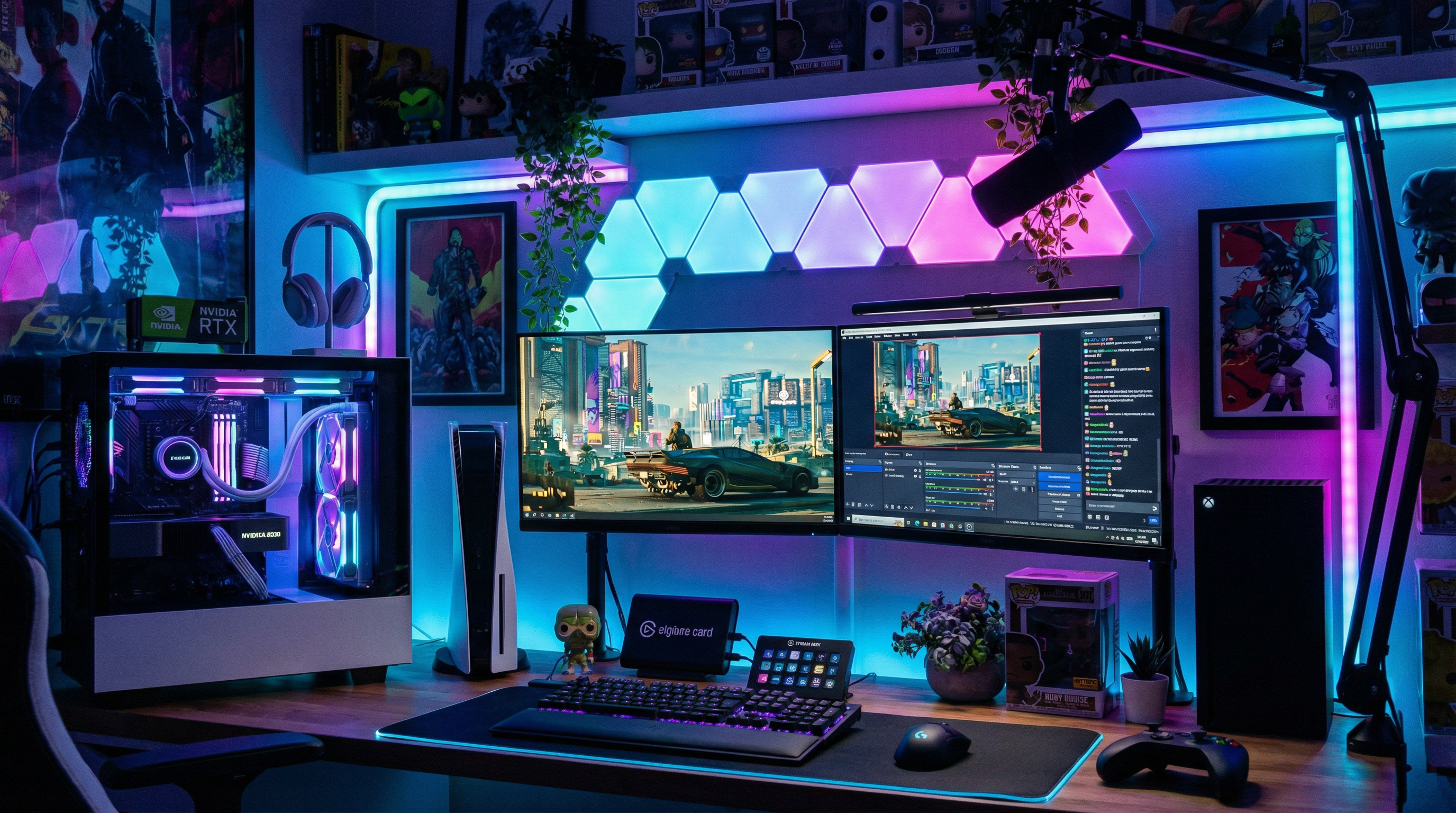
Serious streamers and content creators need capture that doesn't add input lag or compromise image quality-because your audience can tell when the feed is mushy, and you can tell when the game feels like it's running through treacle. USB capture devices with onboard processing pass through the video with minimal delay while sending a separate stream to your PC for encoding, so you play at full speed and your stream gets a clean feed.
Why 4K60 and HDR Matter for Gaming
Modern consoles output 4K at 60fps, and many titles support HDR. Capturing that faithfully requires a device that can accept 4K60 HDR input and either pass it through for your display or downscale for streaming without adding noticeable latency. Magewell's 4K-capable USB capture devices are built for exactly this: gameplay in, stream and/or monitor out. If you're on 1080p60 (e.g. Switch or a 1080p-focused setup), the USB Capture HDMI Gen 2 is enough; if you're on PS5 or Xbox Series X and want to preserve 4K and HDR for local recording or future-proofing, the 4K line is where to look.
- Zero input lag passthrough – Play on your monitor while capturing; no delay. The passthrough path is hardware; your gameplay isn't waiting on software.
- 4K60 HDR – Supported on USB Capture 4K models for next-gen consoles. Capture and record in full quality; stream at whatever your platform allows.
- Console compatible – Works with PS5, Xbox Series X/S, Nintendo Switch, and PC. One device, multiple platforms.
Streaming vs Local Recording
Most streaming platforms cap at 1080p60 (or 900p), so even with a 4K capture device you'll typically encode at 1080p for the stream. The benefit of 4K capture is that you can record a separate 4K file for YouTube or archival while streaming 1080p-or just enjoy the flexibility to change your mind later. Passthrough to your display is independent of what you're sending to OBS, so your own gameplay experience stays crisp and lag-free.
Setup Tips for Console Capture
Run your console's HDMI through the capture device's passthrough (when available) to your monitor, or use a separate HDMI splitter if your device doesn't have passthrough. That way the console always sees a display and won't drop resolution. Use a USB 3.0 port on the PC; avoid unpowered hubs for 4K devices-they're bandwidth-hungry. Once OBS or your capture app sees the device, set resolution and frame rate to match your stream or recording profile and you're good to go.
Next Steps
Check our Gaming & Console application page and the USB Capture 4K range for 4K60 HDR options. Need help choosing? Contact StreamKit for advice and delivery across the UK and EU.