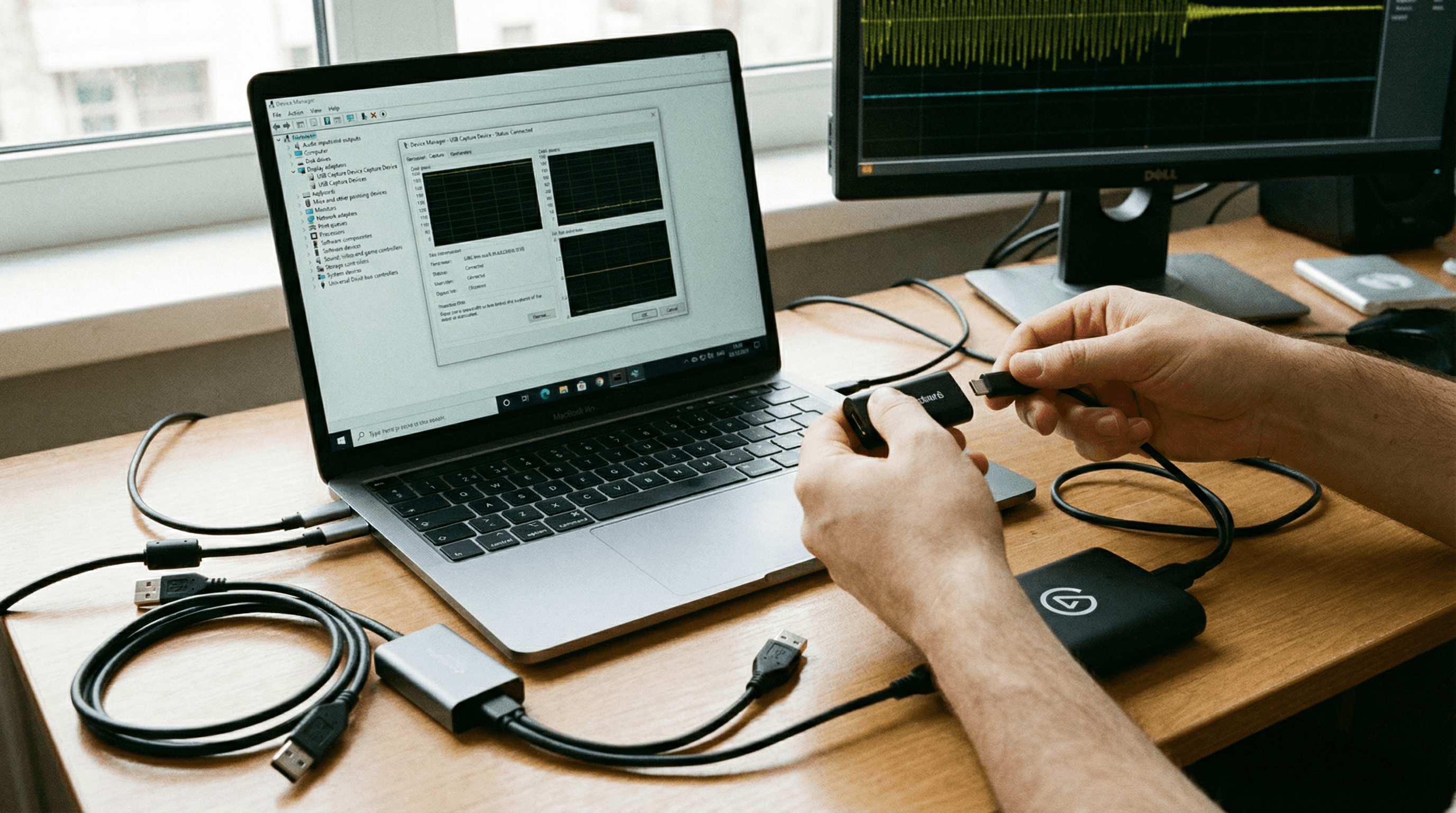
If your Magewell USB capture device shows no picture or drops frames, don't panic-most issues are due to USB bandwidth, cabling, or source resolution, and they're fixable without a trip to the workshop. This guide covers the most common fixes so you can get back to streaming or recording instead of staring at a black screen.
No Signal or Black Screen
Check the HDMI chain first. Ensure the source is on and outputting a resolution the device supports (e.g. 1080p60 for USB Capture HDMI Gen 2). Some sources default to 4K or a weird mode; try forcing 1080p in the source's display settings. Try a different HDMI cable-cheap or damaged cables are a frequent culprit. Try a different HDMI port on the source if it has more than one. Then check USB. Use a USB 3.0 port directly on the computer; avoid unpowered hubs, especially for 4K devices. Try another port (sometimes one controller is flaky). On Windows, open Device Manager and confirm the device appears under "Cameras" or "Sound, video and game controllers" without a yellow warning. Restart the application (e.g. OBS) after connecting-sometimes the app needs to see the device at launch. If you just plugged in, give the OS a few seconds to enumerate the device before opening your capture app.
Dropouts or Stuttering
Dropouts are often caused by insufficient USB bandwidth or CPU overload. Close other applications that might be using the camera or hammering the USB bus (other capture apps, conferencing software, or heavy disk I/O). If you're using multiple capture devices, spread them across different USB controllers-on a laptop, try one device on each side; on a desktop, use ports on different root hubs. That way one busy device doesn't starve the others. Ensure your PC meets the minimum specs for your workflow: encoding and capture are separate (Magewell does the capture in hardware), but a struggling PC can still cause frame drops or freezes in the application. If you're on 4K capture, bandwidth is higher; use the best USB ports you have and avoid daisy-chaining through hubs.
Resolution and EDID
Some sources (especially consoles and set-top boxes) need to see a "display" on the HDMI line before they output a signal. If your capture device has passthrough, connect a display to it so the source sees a sink. If not, an HDMI dummy plug or a small display on the output can fix "no signal" when the source is picky about EDID. Check your device's documentation for supported resolutions and refresh rates; feeding it something out of spec can result in no lock or unstable lock.
Further Help
Magewell's support site has detailed FAQs and firmware updates. StreamKit provides pre- and post-sales support for customers in the UK and EU. Contact us with your device model and a description of the issue (when it happens, what you've tried); we'll point you to the right resource or escalate to Magewell if needed. See also our Support page for links and contact options.
Next Steps
Guides and product pages have more technical detail. For warranty and returns, see our Terms. Most "no signal" and dropout issues are solved with cable, port, or source checks-so work through the list before assuming hardware failure.