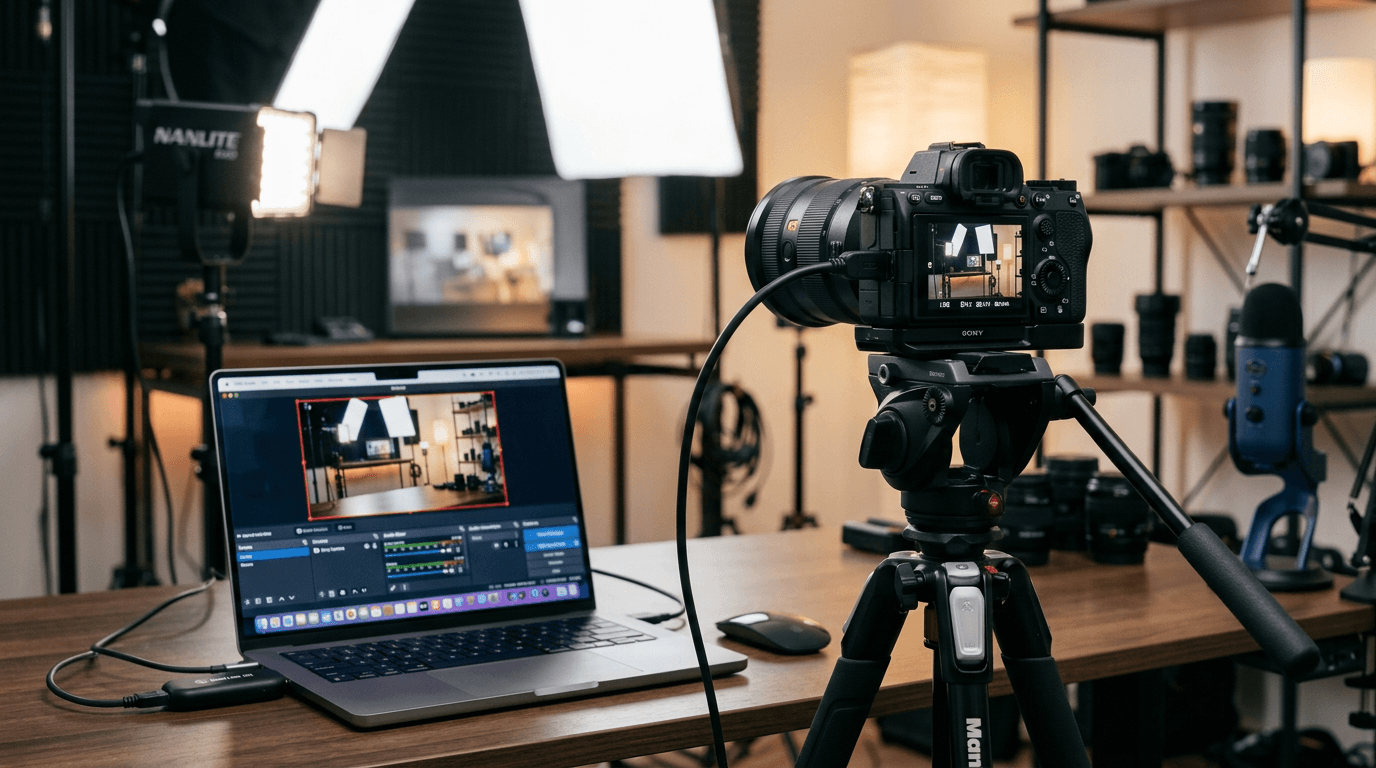
Most cameras, Sony, Canon, Nikon, Fujifilm, Panasonic, output clean HDMI from their HDMI port. That's 1080p or 4K video, with no on-screen overlays, from a lens and sensor that no webcam can match. A USB capture card is the bridge between that HDMI output and your PC. Here's how it works, what to look for, and why professional capture hardware makes a difference.
Why You Need a Capture Card (Not Software)
Some manufacturers (Sony, Fujifilm, Canon) offer software apps or firmware that turn the camera into a USB webcam without a capture card. These work with varying reliability and often cap resolution or frame rate, and depend on the camera staying connected over USB while powering from it, which can cause issues with long sessions or certain camera models. A hardware capture card takes the HDMI output instead: cleaner signal path, full resolution, works consistently regardless of the camera's firmware quirks, and doesn't depend on a proprietary app staying updated. It also lets you use the camera with any software that accepts a camera input, not just the platforms the manufacturer supports.
Professional USB capture devices like Magewell's USB Capture HDMI Gen 2 handle this in hardware. Your PC receives a standard video stream; OBS, Zoom, Teams, vMix, or any other app just sees a camera. If you change cameras, the capture card stays the same, just swap the HDMI source.
Which Cameras Work?
Any camera with a clean HDMI output will work. "Clean" means no on-screen overlays from the camera's menu, most cameras can be set to output clean HDMI in their menus, or do so by default on certain models. Check your camera's manual for "clean HDMI output" or "HDMI output settings". Common models confirmed to work well:
- Sony, Alpha series (A7 III, A7 IV, ZV-E10, FX30 and others). Most Alpha bodies output 1080p or 4K clean HDMI.
- Canon, EOS R series, EOS 90D, EOS M series with HDMI out. Check your model's spec sheet; many output 1080p60 clean.
- Fujifilm, X series (X-T4, X-S10, X100V and others). Fujifilm's film simulations output over HDMI, popular with streamers for the look.
- Nikon, Z series and D series with HDMI output. Z30 was specifically designed for content creators.
- Panasonic, GH series and S series. The GH5 in particular has been a popular streaming camera for years.
If your camera outputs HDMI, it will work with an HDMI capture device. The only variable is whether the output is "clean", most modern cameras are, or can be configured to be.
Keeping the Camera Powered
This is the practical issue most guides skip: camera batteries drain fast during continuous video output. For any streaming or recording session longer than 30-40 minutes, power the camera from the mains. Most cameras support dummy battery adapters (which sit in the battery slot and draw from a USB charger or a mains adapter), or can be powered via USB-C if the model supports it. Check your camera's accessories. For Zoom calls and shorter sessions, a charged battery may be fine; for a full day stream or an all-day conference room setup, mains power is essential.
Setup: Camera to OBS in 4 Steps
- Set your camera to output clean HDMI (check its menu for HDMI output settings; disable overlays if possible).
- Connect an HDMI cable from the camera's HDMI out to the Magewell device's HDMI in. Use a Mini-HDMI or Micro-HDMI adapter if your camera has a smaller port.
- Plug the Magewell into a USB 3.0 port on your PC. Windows will enumerate it as a camera within a few seconds, no drivers needed.
- In OBS, add a Video Capture Device source and select the Magewell. Set resolution and frame rate to match your camera's output (typically 1080p60 or 4K30). You're live.
For Zoom or Teams, go to Settings → Camera and select the Magewell device. Same clean camera feed, straight into your call.
4K vs 1080p, What Resolution to Capture
If your camera outputs 4K and you want a 4K recording alongside a 1080p stream, use a Magewell 4K-capable model. For most streaming setups, where the output is 1080p60 anyway, the USB Capture HDMI Gen 2 handles everything you need. The image quality advantage of your camera shows even at 1080p: the sensor, lens, and colour science are still doing the work; the capture card is just the pipe.
Next Steps
Browse the USB Capture HDMI range, the Gen 2 is the starting point for 1080p camera setups; step up to 4K models if your camera outputs 4K and you want to preserve it. Contact StreamKit for advice on matching the right device to your camera and workflow. Free UK shipping and 3-year warranty on all orders.