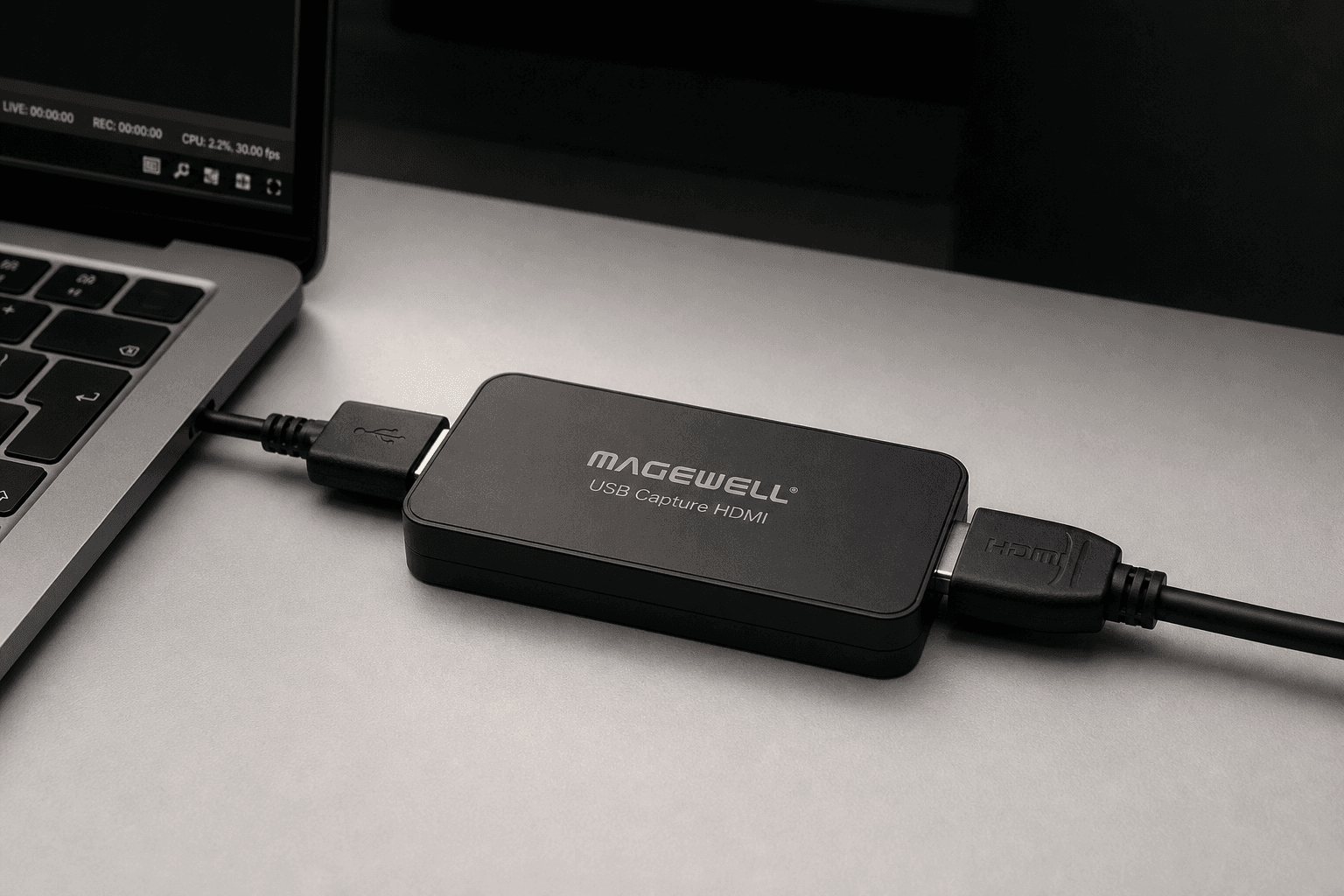
Magewell USB capture devices appear as standard UVC webcams to Windows and macOS. This means they work with Microsoft Teams and Zoom without specialist software or virtual camera drivers. The setup is straightforward, but there are a few points where people run into problems. This guide covers the full process.
Why Use a Capture Device Instead of a USB Webcam
Most business webcams top out at 1080p and use consumer-grade sensors with compressed video. A Magewell USB capture device connected to a DSLR, mirrorless camera, PTZ camera, or HDMI switcher delivers broadcast-quality video into your call: sharper, cleaner, with better low-light performance and more control over framing and exposure.
For hybrid meeting rooms, a fixed PTZ camera feeding through a Magewell USB Capture HDMI device is a common and reliable setup. The PTZ provides remote pan/tilt/zoom from the desk or software, and Teams or Zoom sees a high-quality camera input rather than a fixed webcam pointed at the room.
Driver Installation
Magewell USB devices are UVC-compliant, which means they work driver-free on Windows 10/11 and macOS as a basic webcam source. For full functionality including hardware configuration and signal monitoring, install the Magewell USB Capture Utility from the Magewell website.
On Windows, after connecting the device and installing the utility, it will appear in Device Manager under Cameras and in Sound, video and game controllers. Confirm it shows without errors before opening Teams or Zoom.
Setting Up in Microsoft Teams
In Teams, go to Settings (gear icon) > Devices. Under Camera, open the dropdown and select the Magewell device. It will appear as Magewell USB Capture HDMI or similar depending on the model. The preview in Settings will show your HDMI source immediately if the connected camera or source is live.
If the device appears in the dropdown but shows a black preview, check that your HDMI source is powered on and outputting a valid signal. The Magewell device passes whatever is on the HDMI input: no signal in means no signal out.
Teams caches device selections. If you switch between devices frequently, restart Teams after changing the camera source to ensure it takes effect in the next call.
Setting Up in Zoom
In Zoom, go to Settings > Video. Under Camera, select the Magewell device from the dropdown. The preview panel will show the live HDMI input. Zoom allows you to test with a virtual background or video filter: make sure to disable these if you want the cleanest possible pass-through from your camera source.
Zoom has a High Definition checkbox under Video settings. Enable this to allow Zoom to request 1080p from the capture device rather than the default 720p. Not all Magewell models output 1080p to Zoom without this enabled.
Resolution and Frame Rate
Teams and Zoom both cap outgoing video at 1080p30 for most standard account types. Enterprise accounts with the HD video option enabled can send 1080p. The Magewell USB Capture HDMI Plus supports up to 1080p60 input, but the platform will use the resolution it requests from the device, not necessarily the maximum the device can deliver.
For the best results, set your source camera or PTZ to output 1080p50 or 1080p60 HDMI. The capture device handles the signal cleanly and Teams or Zoom takes what it needs from the USB stream.
Common Problems and Fixes
- Black preview in Teams/Zoom: Source camera or HDMI device is off or not outputting a signal. Check the HDMI cable and source.
- Device not appearing in dropdown: Disconnect and reconnect the USB. On Windows, check Device Manager for driver errors. Try a different USB 3.0 port.
- Choppy or low-frame-rate video in calls: Network bandwidth limit on the call. Not a capture device issue. Test with a USB webcam to confirm.
- Device works in OBS but not Teams: Teams may be blocking the device if OBS is running and has exclusive access. Close OBS before opening Teams.
- No audio from the HDMI source: Set the Magewell device as the audio input in Teams/Zoom Settings > Audio separately from the camera. HDMI audio and video are separate inputs.
Which Magewell Device for Teams and Zoom
The USB Capture HDMI Gen 2 is the standard choice for hybrid meeting rooms: 1080p60 input, USB 3.0, small form factor. For PTZ cameras or HDMI switcher outputs, the USB Capture HDMI Plus covers most scenarios. For multi-camera rooms or 4K sources, step up to the Pro Capture range.
StreamKit stocks the full Magewell USB range with UK warranty and technical support. Browse compatible devices or contact us with your setup for a recommendation.