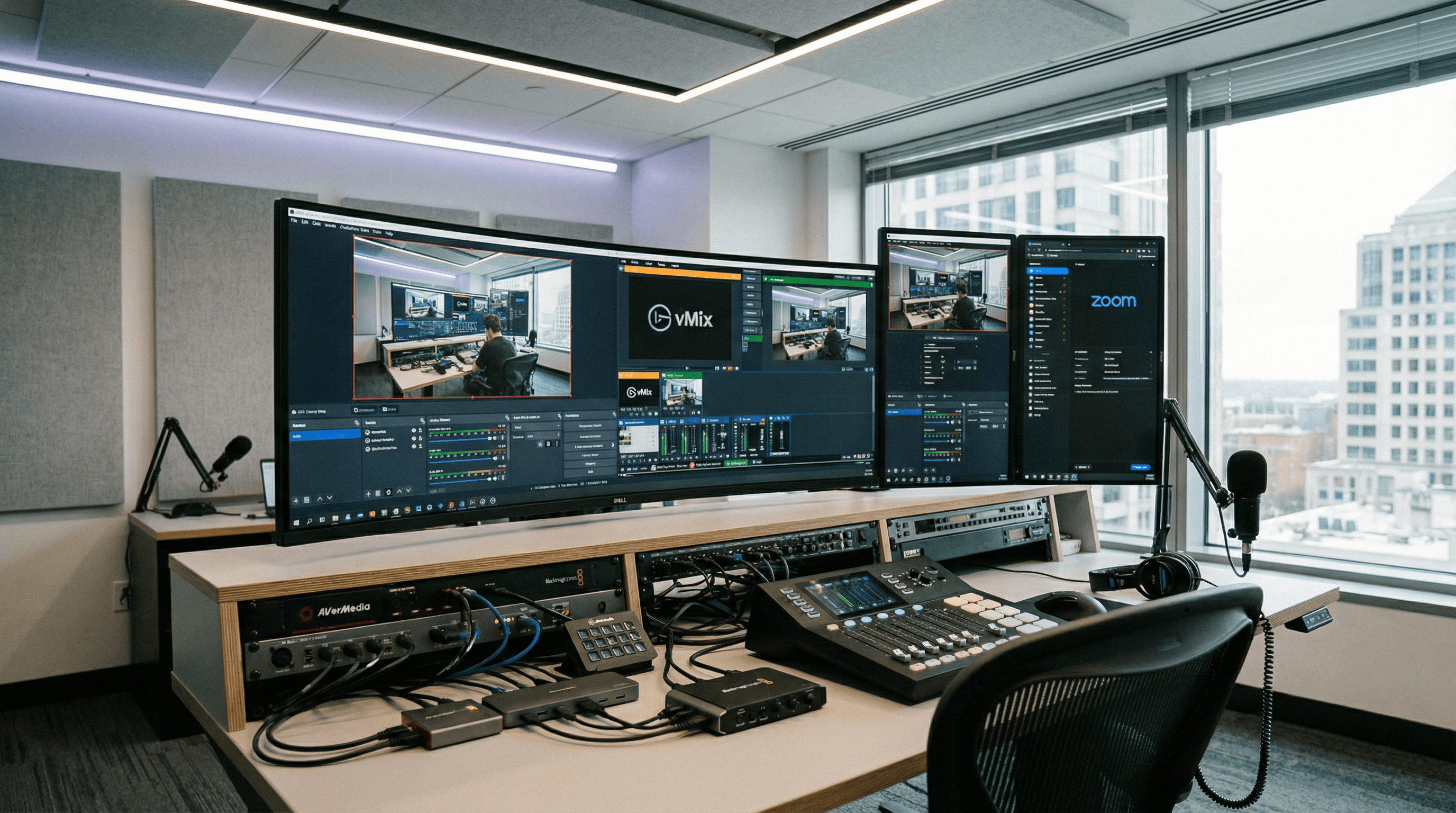
If you've ever tried to bring a proper camera, a room display, or a document camera into a Teams meeting, you'll know the usual answer is "just use the built-in webcam." But for training rooms, hybrid meeting spaces, and anyone who needs broadcast-quality video in a call, USB capture devices let you feed any HDMI source into Teams as a standard camera, no custom drivers, no IT headaches.
How USB Capture Works with Teams
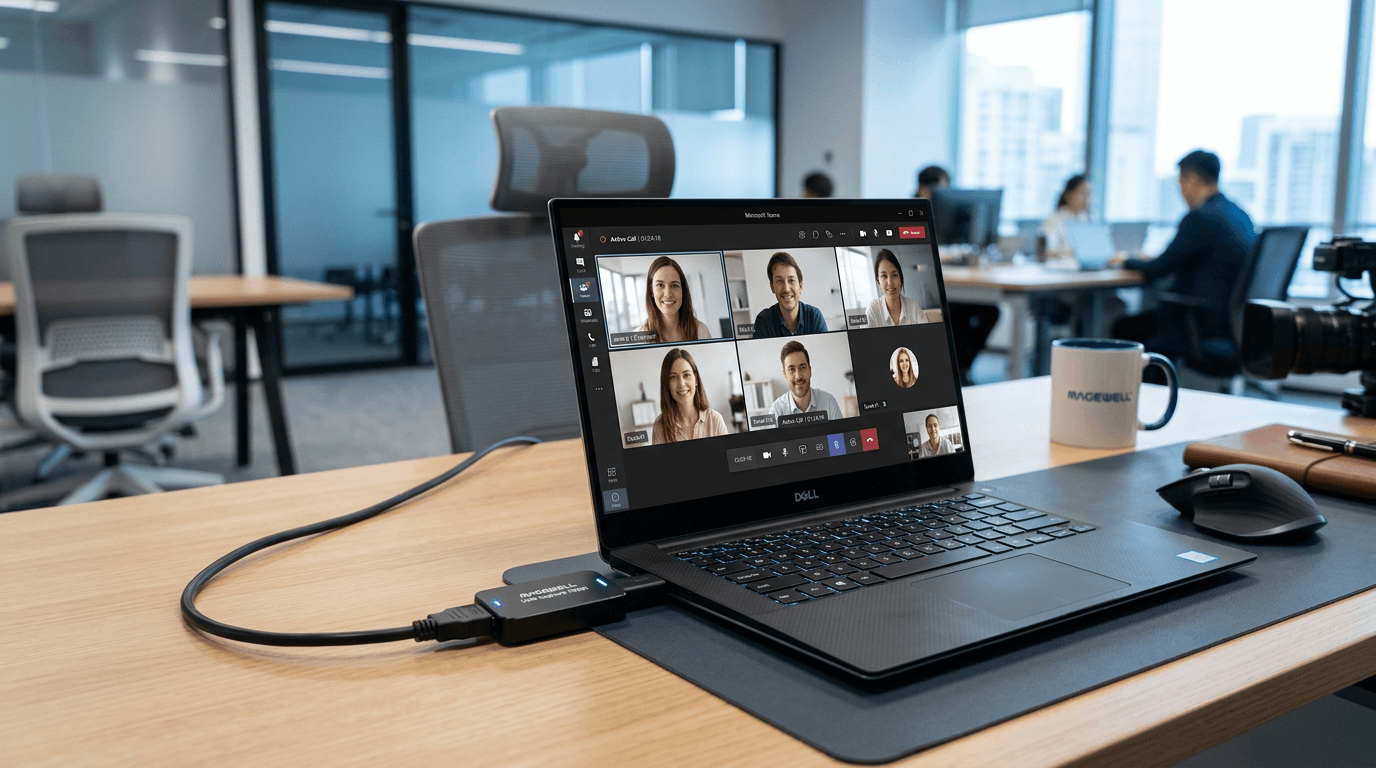
Magewell USB capture devices present themselves to Windows as standard UVC cameras, the same class as any webcam. Microsoft Teams lists all UVC camera devices in its video settings, which means your capture device appears alongside your built-in webcam. Select it, and Teams sends that HDMI feed to your call. Your colleagues see whatever is plugged into the capture device's HDMI input: a room camera, a presentation display, a document camera, a second PC, anything.
The key advantage over consumer webcams or HDMI-to-USB dongles is reliability. Magewell's FPGA-based processing handles format conversion and scaling in hardware, so the feed is stable over long meetings and unaffected by what your PC is doing elsewhere. No driver updates required after Windows patches, UVC is a native OS class, handled by Windows itself.
Setting It Up in Teams
The process is the same as selecting any camera in Teams:
- Plug the Magewell USB capture device into a USB 3.0 port and connect your HDMI source (camera, room display, document camera).
- Give Windows a few seconds to enumerate the device, it will appear as a camera without any driver installation.
- In Teams, go to Settings → Devices and select the Magewell device from the Camera dropdown. It may appear as "USB Capture", "Magewell USB Capture HDMI", or the product name.
- Preview the feed in Settings to confirm the source is live, then join or start a meeting as normal.
If you're running multiple sources, for example a room camera on one Magewell device and a presentation feed on a second, Teams can only use one camera natively. To switch between sources or combine them, use OBS Studio's Virtual Camera: set up both captures in OBS, switch between scenes, and present the OBS Virtual Camera as the Teams camera. That single OBS Virtual Camera then carries whatever your OBS scene is showing.
Corporate Room Setups
The most common scenarios in corporate environments:
- Meeting room camera, PTZ or fixed camera with HDMI output connects via Magewell to the room PC. Teams sees a proper wide-angle room shot instead of a laptop webcam. Works for huddle rooms through to boardrooms.
- Document camera / visualiser, Many visualisers output HDMI. Capture with a Magewell device and select it in Teams when you need to show a document, whiteboard, or physical object. No need for an additional software bridge.
- Room display feed, Capture the room's presentation PC or interactive display for participants who need to see what's on screen without screen-sharing lag. Useful in training rooms where the trainer's machine and the room display are separate from the Teams PC.
One USB capture device per source keeps things simple. Each device is independent, if one source disappears, the others aren't affected. IT can deploy the same model across all rooms for a consistent support story.
Teams Rooms vs Standard Teams
Standard Microsoft Teams (on Windows laptops and desktops) accepts any UVC camera, including Magewell. Microsoft Teams Rooms (MTR) is a dedicated room system running on a locked-down appliance, and camera compatibility may be limited to a certified device list. For standard Teams on a normal Windows PC or room PC, Magewell works without restriction. Check your MTR vendor documentation if you're running a dedicated Teams Rooms appliance rather than a standard PC.
What About Audio?
USB capture devices handle video; audio is separate. If your HDMI source carries embedded audio and you want Teams to receive it, check the device properties in Windows Sound settings, some Magewell models expose embedded HDMI audio as an audio device. In most corporate setups, audio comes from a separate USB microphone, conference speaker, or the Teams Rooms audio system rather than through the capture device. Route audio however your room is set up; the capture device just handles the video feed.
Next Steps
Browse our USB Capture products or read our Corporate & Business guide for more room setup ideas. If you need advice on the right device for your room type or Teams configuration, contact StreamKit, free UK delivery and 3-year warranty on all orders.