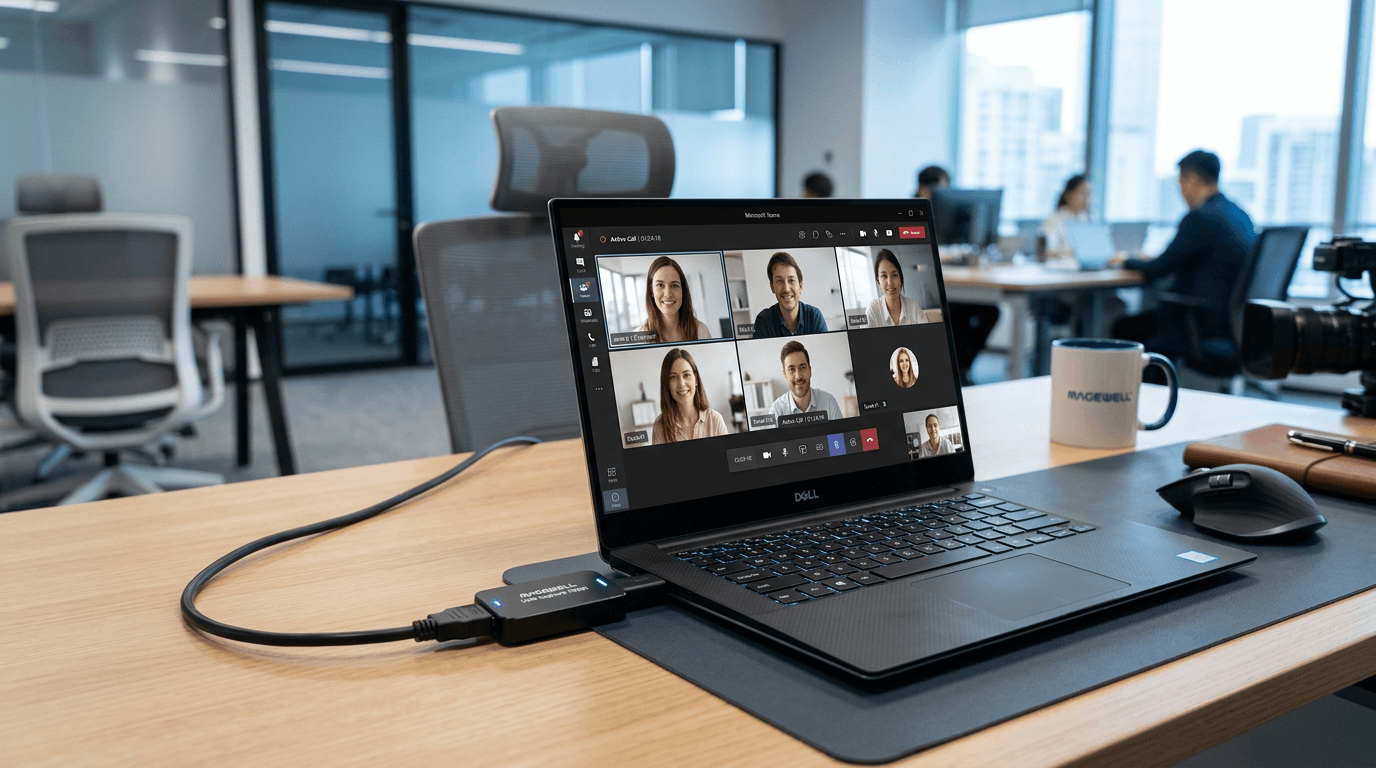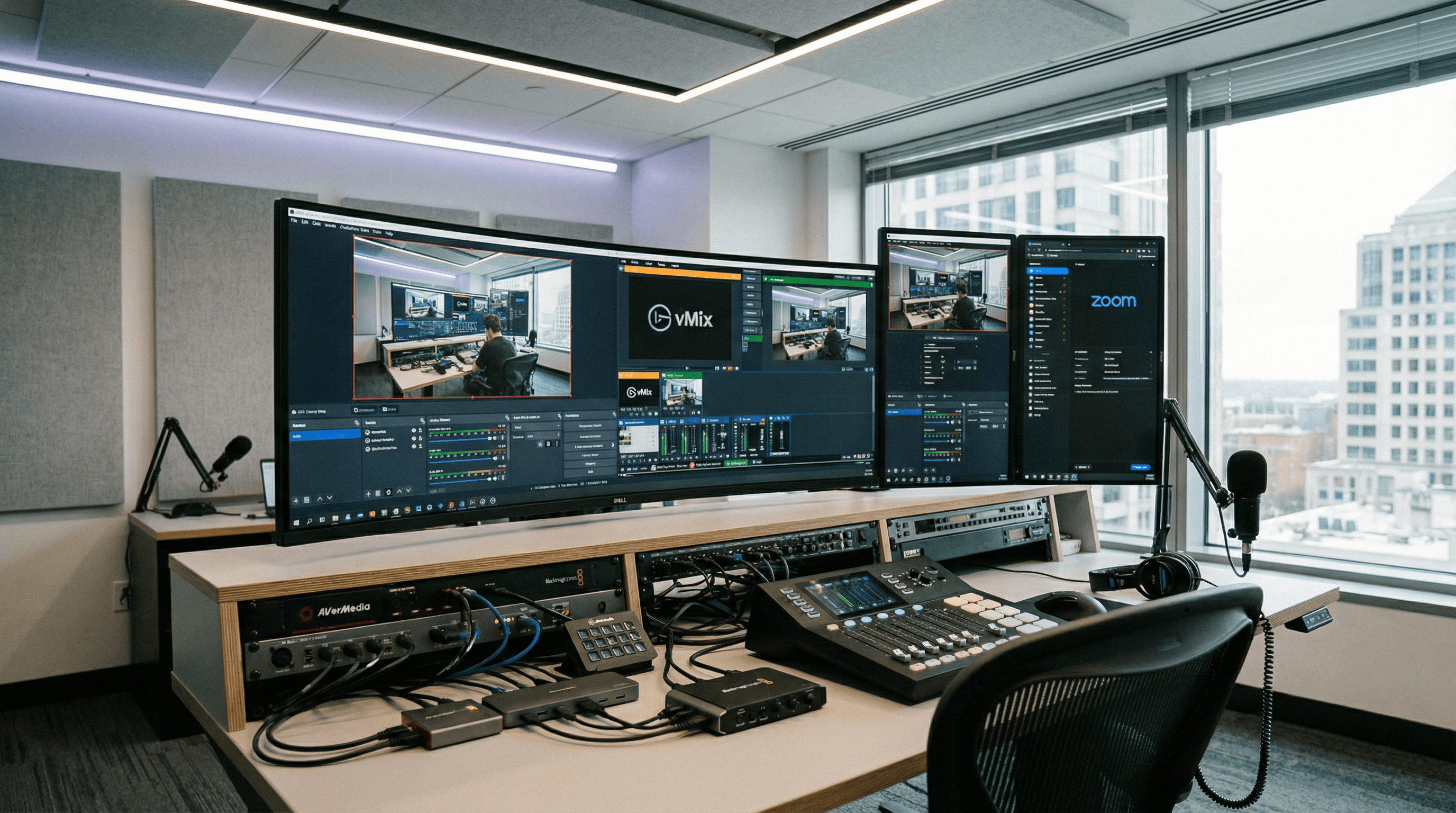
Magewell USB capture devices present as standard UVC video sources-which is a fancy way of saying "your computer thinks they're webcams." That means they work with any software that can use a webcam or generic video capture device: vMix, OBS Studio, Zoom, Microsoft Teams, and pretty much anything else that has a "camera" or "capture device" option. This article summarises compatibility and best practices so you can plug in once and use the same device across your whole workflow.
OBS Studio and vMix
In OBS Studio, add a Video Capture Device source and select the Magewell device from the device dropdown. Resolution and frame rate can be set in the source properties; "Default" usually picks up whatever the source is sending. In vMix, add an Input and choose "Capture Card" or the equivalent; select the Magewell device. Both applications can use multiple Magewell devices for multi-camera setups-each device appears as a separate source or input. For 4K workflows, ensure you're using a 4K-capable Magewell model and that your PC has enough USB and CPU headroom; 4K capture is bandwidth-heavy. If you're only streaming at 1080p, you can still capture at 4K for a local record and let the software scale for the stream.
Zoom and Microsoft Teams
In Zoom, go to Settings → Video and select the Magewell device as your camera. You can then share that video in meetings-handy when the "camera" is actually a document camera, a room feed, or a graphics output. You can also use OBS's Virtual Camera to send an OBS scene (with multiple Magewell sources mixed) into Zoom as a single camera. In Microsoft Teams, the process is similar: choose the Magewell device as the camera in device settings. Same idea-bring a document camera, second room, or graphics feed into a call without extra middleware. Just remember that only one application can have exclusive use of a capture device at a time; if OBS has it open, Zoom won't see it until OBS releases it.
Other Software and Virtual Cameras
Any application that lists "cameras" or "video capture devices" will typically see the Magewell. That includes streaming apps (Streamlabs, XSplit), conferencing tools (Google Meet, Webex), and recording software (Audacity for audio isn't relevant here, but video recorders that use standard capture APIs are). If you need to send a composed scene (multiple sources, overlays) into a conferencing app, use OBS's Virtual Camera or a similar virtual webcam that takes OBS's output and presents it as a single camera. That way you get the best of both worlds: multi-source production in OBS, single "camera" in Zoom or Teams.
Next Steps
For step-by-step OBS setup, see our OBS tutorial. For product options, browse USB Capture or contact StreamKit for advice-we can help you match the right device to your software and resolution needs.