Running two cameras is not twice as complicated as running one. The hardware is simple — one USB capture device per camera — but there are a few USB bandwidth rules you need to follow to stop dropped frames ruining a multi-hour stream. This guide covers every practical step from a basic two-camera OBS setup to a four-camera production rig.
Why multi-camera matters
A single camera stream is fine for solo creators. The moment you add a guest, a wide shot of a venue, a product close-up, or a slide deck, you need cuts. Multi-camera gives your audience something to look at and hides the moments where a presenter loses their place or a microphone pops. For churches, sports clubs, event companies, and corporate broadcasters, two cameras minimum is the professional standard.
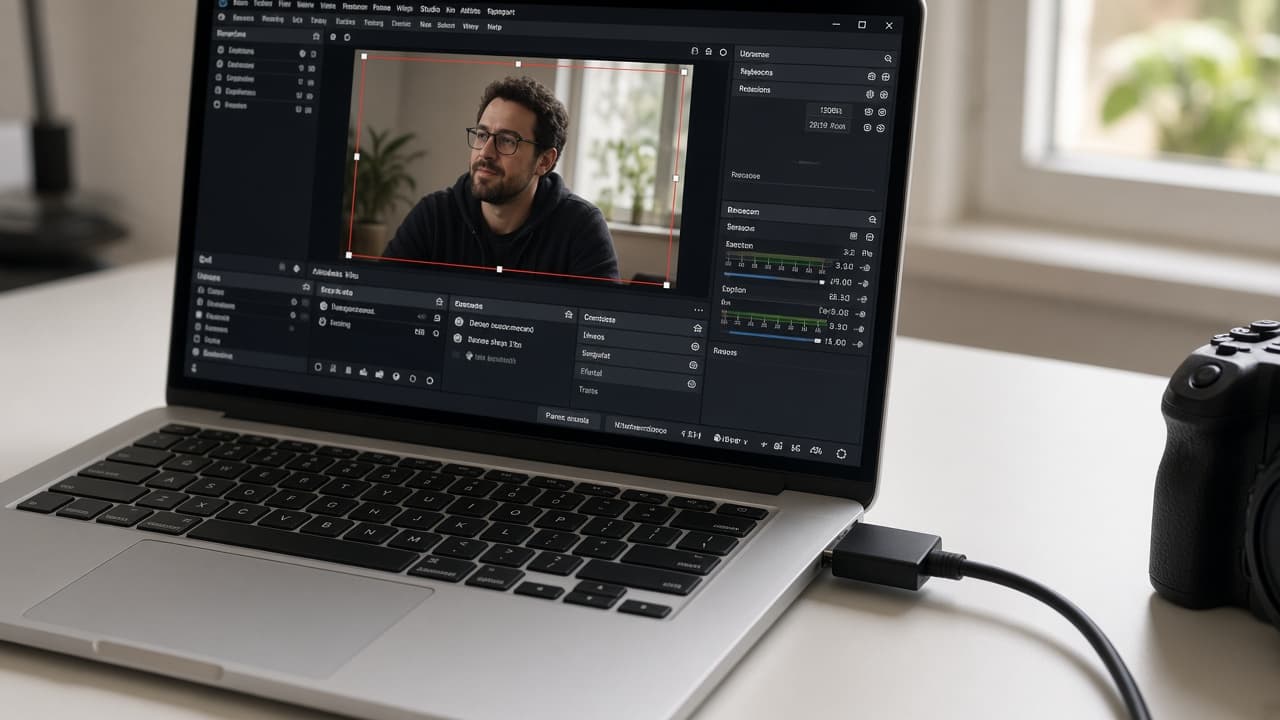
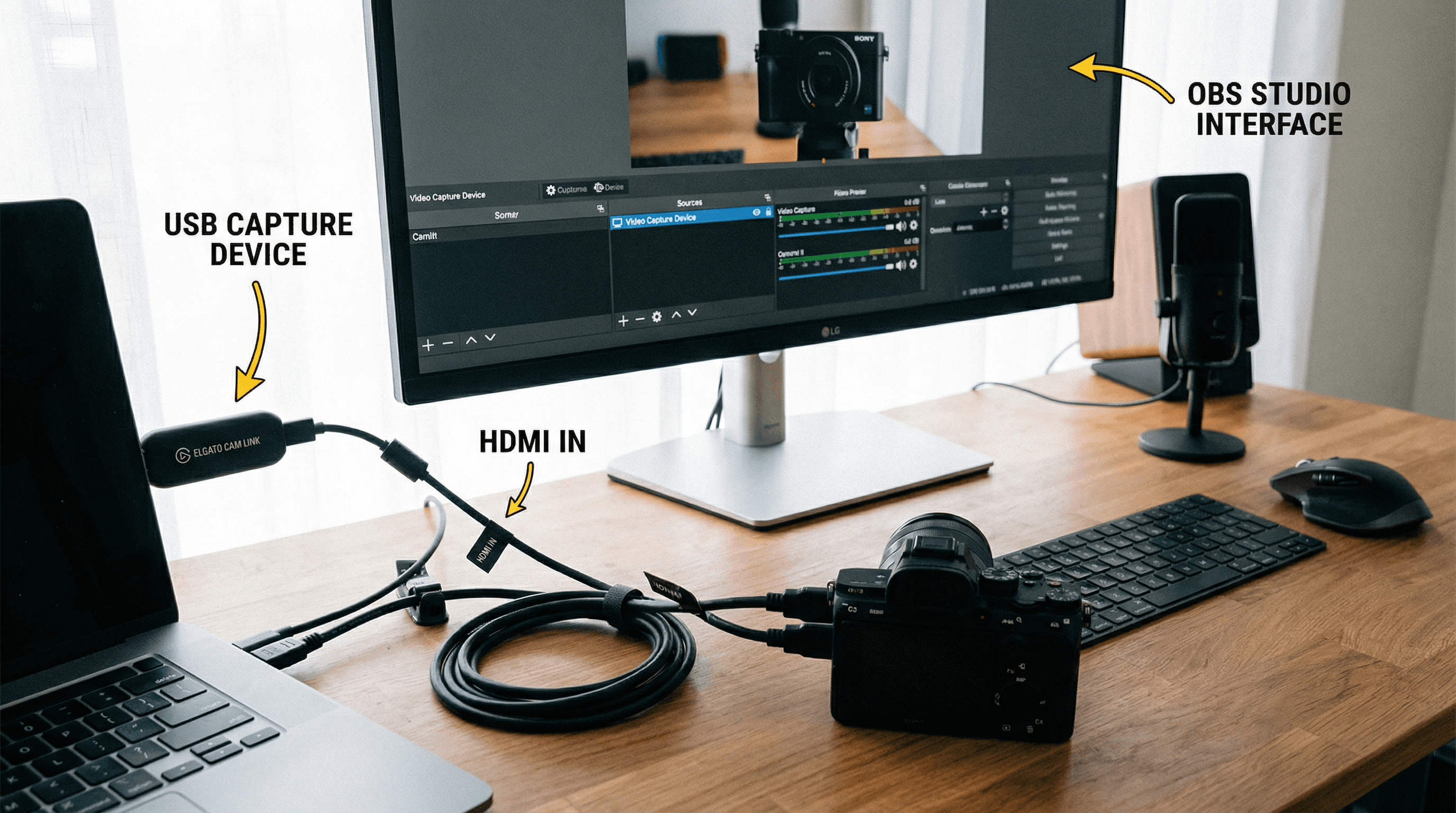
The good news is that each Magewell USB capture device appears in OBS as a separate Video Capture Device source. There is no complicated routing or matrix switching required. Add one source per camera, lay them out in your scenes, and cut between them using hotkeys or a stream deck. The complexity is in the USB setup, not the software.
Two-camera setup
The simplest and most common configuration. Two USB Capture HDMI Gen 2 devices, two HDMI cameras, one computer. Plug each device into a different USB 3.0 port, open OBS, add two Video Capture Device sources, and assign them to your scenes. The whole setup takes under ten minutes.
The critical rule: use two different USB controllers. Most laptops and desktop motherboards have multiple USB root hubs, each with its own bandwidth. If you plug both capture devices into adjacent ports on the same side of a laptop, they may share a single controller and compete for bandwidth. On a laptop, one device on each side is usually enough. On a desktop, check Device Manager under Universal Serial Bus controllers to identify separate root hubs and split your devices across them. USB 3.0 gives you 5 Gbps per controller, which is more than enough for two 1080p60 streams on separate hubs.
If you need loop-through to feed a local confidence monitor from either camera position, swap one or both Gen 2 devices for the HDMI Plus, which adds a zero-latency HDMI output.
Three-camera setup
A third camera is where USB controller management becomes important. You have three devices, typically two or three controllers available. Spread them out: one device per USB controller where possible. On a laptop with limited ports, a quality powered USB 3.0 hub connected to a different port than your other devices can give you a third controller path — but test under load before you rely on it for a live stream.
A common three-camera configuration for churches and events: wide shot (front of room), close-up on the speaker, and a confidence or graphics feed from a presentation laptop. All three running at 1080p60, spread across controllers, into OBS. A hotkey or a Elgato Stream Deck lets you cut between them cleanly.
At this camera count, it is also worth considering the USB Capture AIO for any camera that outputs SDI, DVI, VGA, or Component. The AIO handles all of those formats in a single device and frees up a USB slot compared to using a dedicated dongle per format.
Four cameras and above
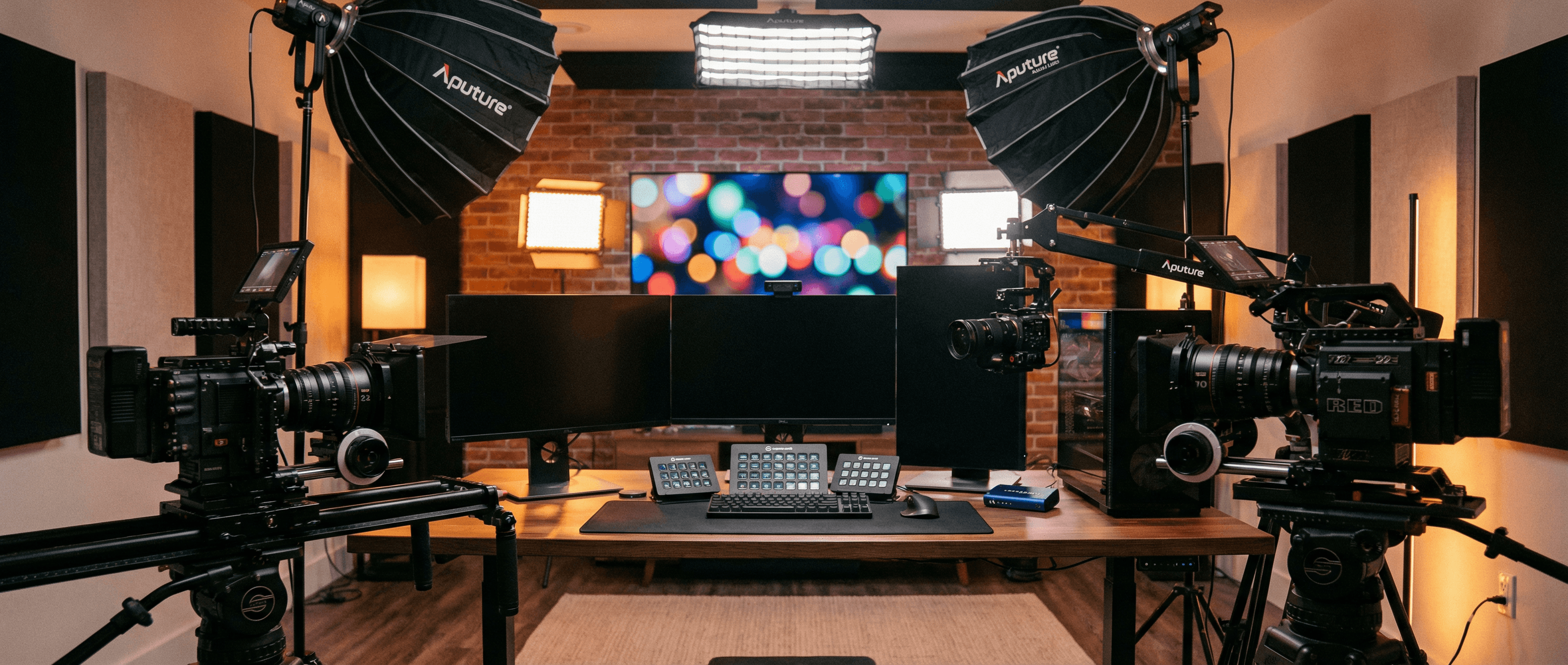
Four USB capture devices on a single machine is achievable but demands a machine with plenty of USB controllers and a fast CPU for encoding. For most four-camera productions at 1080p, a modern desktop with a dedicated USB PCIe card giving two additional independent controllers handles the bandwidth comfortably.
An alternative worth considering at four cameras and above is switching to a PCIe capture card. The Magewell Pro Capture Quad HDMI puts four independent HDMI capture channels on a single PCIe x4 slot, sidestepping USB bandwidth entirely. It uses the motherboard PCIe bus instead, which has far more headroom. This is the path that broadcast facilities, sports venues, and production companies take when they need reliable multi-channel ingest without USB management overhead.
For SDI cameras at this scale — typical in live broadcast and events — the Pro Capture Quad SDI is the equivalent, capturing four SDI feeds with cable runs up to 150 metres per channel.
Setting up multiple sources in OBS
Each Magewell device appears as a separate entry in the Video Capture Device dropdown. Add a source for each camera, name them clearly (Wide, Close, Slides), and build your scenes around them. The most practical scene structure for a two or three-camera show: a dedicated scene per camera angle, plus a combined scene showing a layout for when you want both on screen at once.
For switching without a stream deck, OBS's built-in hotkeys under Settings → Hotkeys let you assign keyboard shortcuts to scene transitions. Set them up before you go live and practise the cuts so muscle memory takes over during the event. If you are streaming and recording simultaneously, set the recording output to a high-quality format — the stream encode can be lower bitrate since your Magewell devices are doing the heavy lifting on ingest, not your CPU.
For a detailed walkthrough of the initial device setup in OBS, see our OBS setup guide.
Recommended hardware by scale
2 cameras, portable: Two USB Capture HDMI Gen 2 (£231.05 ex VAT each). Compact, bus-powered, no adapters needed.
2–3 cameras, with local monitoring: USB Capture HDMI Plus (£287 ex VAT) for the positions that need a loop-through to a confidence monitor.
4+ cameras, permanent installation: Pro Capture Quad HDMI PCIe card (£778 ex VAT) for HDMI sources, or Pro Capture Quad SDI (£599 ex VAT) for broadcast SDI cameras.
StreamKit is an authorised UK Magewell reseller. All devices ship from UK stock with a 3-year warranty. See the full USB capture guide for a side-by-side comparison of all models.